
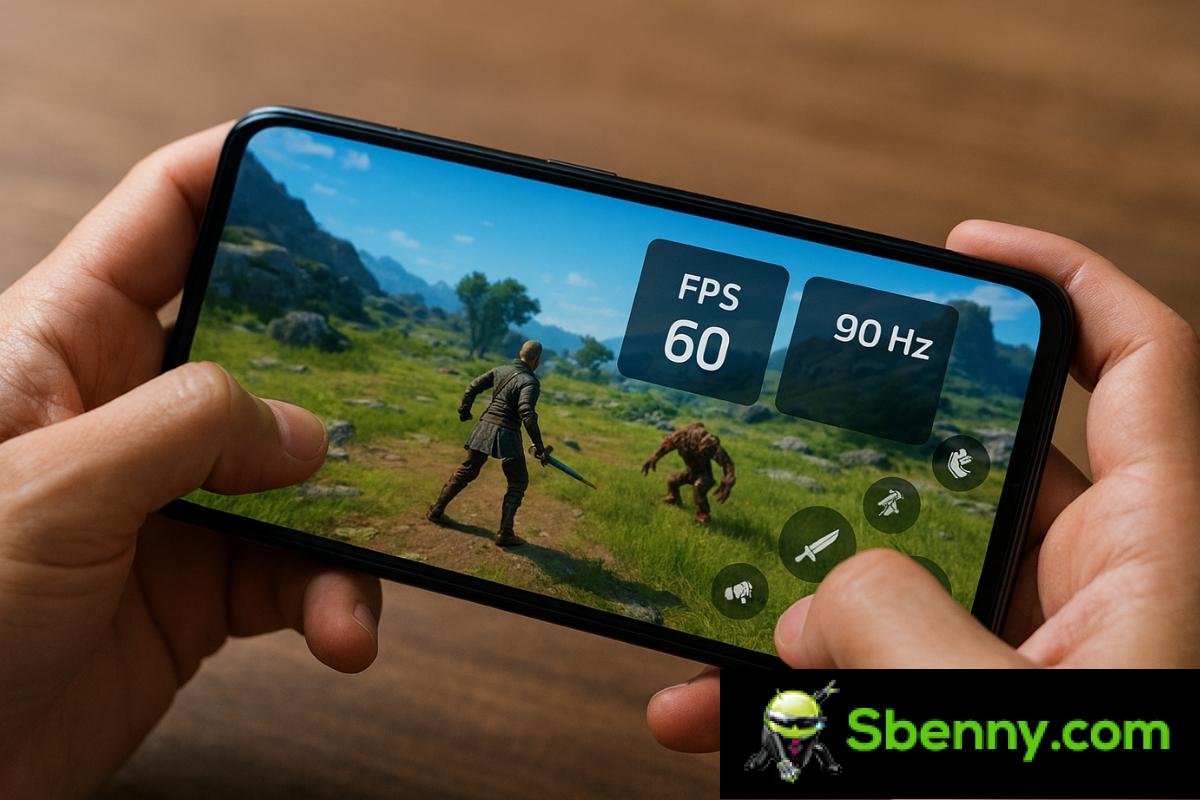
If you like to play on your mobile or simply want to know how far your smartphone can go, it is very useful monitor FPS and screen refresh rate in real time on Android. Not only out of curiosity, but because this data instantly tells you if the system is overloaded or if it is starting to go underpowered in certain games or apps.
On computers it is very common, but on mobile phones many people still do not know that it can also be done easily, without being root and without getting into strange trouble. Throughout this article we are going to see What exactly are FPS and Hz, what do they imply in the performance of your Android and how to display them on the screen while you play or use any applicationusing system tools and specialized apps such as Display Checker, Game Booster or Real-time Display FPS Meter.
What are FPS and refresh rate (Hz) on Android
Before you start activating settings and installing applicationsit’s worth understanding what those numbers you’ll see superimposed on your screen mean when you monitor performance. FPS and Hz are often talked about as if they were the same, but in reality they are not, even though they are directly related.
When we talk about the screen refresh rate in hertz, or Hz, we are referring to the cycles per second at which the panel is capable of updating the image. A 60Hz display can display up to 60 frames every second; one of 90 Hz, up to 90; one of 120 Hz, up to 120, and so on. It is a physical characteristic of the screen, quite stable and that normally only changes when the system activates or deactivates modes such as adaptive refresh.
FPS (frames per second) indicate otherwise: the speed at which your mobile’s GPU and processor are capable of generating those frames. That is, the “gross power” part of the system. A very demanding game can cause the FPS to drop if the hardware does not perform better, even if your screen can refresh at 120 Hz.
Ideally, both figures are in line: If you have a 60 Hz panel, optimal performance will be around 60 FPS. If your mobile supports 90 or 120 Hz and the game is well optimized, it is normal that you will see values close to the maximum possible for that title. When FPS drops below what the screen can display, jerks, lack of fluidity, and an unstable gaming sensation appear.
Therefore, monitoring this data allows you Easily detect if a game is too heavy for you and you need to lower the graphic quality, limit FPS or adjust other parameters. In addition, it serves as a reference to compare performance between different mobile phones or after a major system update.
Why are you interested in seeing FPS and Hz on the screen while you play?
It is very typical among PC users to obsess over the FPS and the hertz of the monitor, and on mobile it should not be so different. Our smartphones increasingly have more powerful hardware and screens with high refresh ratesand Android games have become much more demanding and complex than a few years ago.
Monitoring performance in real time has several clear advantages. For a start, you can see at a glance at which specific moments the game falls apart (scenes with many elements on the screen, special effects, open spaces, etc.). If you notice that the FPS plummets in those areas, it is a good indicator that you need to touch the graphic options.
It is also useful to check if the high refresh mode of the screen is really being used. Many mobile phones include intelligent or adaptive refresh rate modes that promise to go up to 90 or 120 Hz only when necessary to save battery. Showing the refresh rate on the screen allows you to verify if the system really activates those extra Hz when you start your favorite game.
Another reason for wanting to have this data always visible is that help you compare configurations. You can try the same game at maximum quality, mentally note how many FPS you see, and then lower shadows, textures or resolution to see if you gain stability and fluidity. From there you can easily find the middle point between graphic quality and performance that best suits you.
Finally, if you usually tinker, change ROMs, update the system or install betas, monitoring FPS and Hz serves as a thermometer of overall device performance. An Android version change that suddenly drops 10-15 FPS on average in your games is a clear sign that something is wrong.
Show refresh rate (Hz) from developer options
Android has long included a fairly hidden option that allows view screen refresh rate in real timewithout the need for third-party apps. This function only shows the Hz, not the FPS of the game, but it is a very useful first step to check if the panel behaves as it should.
The first thing you need is to activate the developer options. To do this, go into your mobile settings, go to the system information section (usually called “Phone information” or “About phone”) and Click on “Build number” several times in a row until the system tells you that the developer options have been activated. It will ask you for the PIN or security pattern, and that’s it.
When you have this hidden menu enabled, go back to Settings and enter the new “Developer Options” section. Inside, look for the function called “Show refresh rate” or a similar name, which is usually in the settings block related to display or graphical debugging.
When activated, the system will start display the current refresh rate value in the corner of the screen. You’ll see something like “60 Hz,” “90 Hz,” or “120 Hz” depending on which mode the panel is currently using. If the mobile phone has adaptive mode, you will see how that number goes up or down depending on what you are doing: browsing, social networks, video, games, etc.
This function is perfect to know if the high refresh mode is actually activated in the games or apps that interest you. If you see that in a specific title you never go above 60 Hz, that app may not be compatible with higher frequencies or that the customization layer has limited the refresh rate to save battery. In that case, you can go to the display settings and manually force a higher rate if the device allows it.
See FPS and refresh rate with Display Checker on Android
If you want to go one step further and have both FPS and Hz visible at the same time, a very practical solution is to use a specialized application. One of the most recommended is Display Checker, which allows you to display both the refresh rate and frames per second in real time directly on any game or app.
The first thing is to download the app from Google Play and install it as you would with any other application. Once opened, you will see at the top basic information about your mobile screensuch as the resolution, pixel density and the maximum refresh rate supported by the panel.
Inside the application you will see a key option called «Show real-time refresh rate and FPS» or similar. By activating this toggle, you will be indicating that you want a small overlay to be displayed on the screen with the Hz and frames per second data. This is the core function that we are going to use to monitor performance.
As soon as you try to activate the display, the system will show you a warning window because The app needs permission to appear above other applications. It is the classic “overlay” or “overlay” permission, necessary for the indicator to remain visible while you play or use any other app.
By tapping on the “Allow” or “Allow” button, Android will take you to the settings screen. «Show on top of other applications». There you will see a list of apps that can paint content on top of the others. You just have to look for Display Checker, enter its tab and activate the switch that allows it to be displayed above the rest of the applications.
As soon as you grant this permission, you will return to Display Checker. From that moment you can decide what you want to appear in the overlay: only the refresh rate, only the FPS or both. If you also want to capture the game, see how to record a video game on Android.
Additionally, the app allows you customize the position of the indicator on the screen. You can place the data at the top or bottom, and align it left, center, or right. It is advisable to choose an area where important elements of the game interface, such as buttons or the minimap, are not covered.
Once everything is configured, from that moment you will permanently see the Hz and FPS on the part of the screen you have chosenno matter what app you open. If at any time you prefer not to always have them visible, many versions of the app allow the data to also be displayed in the notification area, to consult it more discreetly.
The interesting thing is that, thanks to this overlapping permission, you will also see the FPS values while playing. The counter will remain fixed in the foreground and will allow you to check at all times if the experience remains stable or if there are sudden drops in specific scenes.
Use Game Booster and other apps to show FPS in games
In addition to Display Checker, there are other tools designed specifically for gamers, such as Game Booster and other game boosters including built-in FPS meters. These apps typically optimize resources, close background processes, and offer quick access to performance settings.
In many gaming phones (Black Shark, Lenovo Legion and other gaming-focused models), the customization layer itself incorporates a performance panel where you can activate the FPS meter and other data such as temperature or CPU and GPU usage. It usually appears when swiping from the side during the game or when opening a specific game center.
If your phone is not a gaming phone but you install an app like Game Booster, you can activate an option in its settings menu called something similar to «On-screen FPS display». Once you give it the necessary permissions, the app will overlay a small frames per second counter when you launch any title from its launcher.
Many people think that you have to be root to see the FPS on Android, but that is no longer the case. Most of these tools are supported by APIs of the system itself. and in overlay permissions, so that they can show the information in real time without having to modify the mobile or unlock anything strange.
In some Game Booster or similar utilities you will even find a section called “FPS Monitor” in settings. By entering there, you can activate or deactivate the monitor in real time, change the text size, color, background transparency and position on the screen so that it does not interfere.
With the meter running, you’ll be able to see very clearly if a game is staying stable above 60 FPS or if it’s constantly tanking and oscillating. If the number stays low consistently, it is a clear clue to lower the graphic quality to medium or even low. If the game aims for 60 or 120 maximum FPS but you barely reach 30-40 FPS, you will notice it instantly with jerks and a feeling of unresponsiveness.
Measure FPS of the interface with Real-time Display FPS Meter
Another interesting tool is Real-time Display FPS Meter, an app designed to monitor the general performance of the interface and system animationsmore than the FPS within heavy games. It uses Android’s Choreographer component to calculate the frames per second being drawn to the screen.
This application allows show FPS as a floating overlay or directly in the status barso you can always see how fluid the system is. It’s especially useful if you want to check if your customization layer is working fine or if certain apps cause lag in transitions.
It is important to be clear that Real-time Display FPS Meter does not directly measure GPU performance in complex 3D games. Its objective is the behavior of the Android interface and applications in general, so it is perfect for those who want their mobile to feel “smooth” on a daily basis.
Activation is simple: from its settings you can turn the FPS display on or off with a quick switch, choose whether you want the overlay or the data in the status bar, and adjust the text style so that it is not intrusive. Everything fits quite naturally into the system.
Thanks to its minimalist design, the app offers a good balance between functionality and simplicity. It’s not full of confusing menus or features you won’t use; It basically focuses on displaying the FPS information clearly so that you can detect if there are jerks or performance drops in the interface.
Other useful metrics: CPU, GPU and screen data
In addition to the FPS and the refresh rate, many of these applications incorporate Additional information about your device hardwarewhich can be very useful for you to better understand its limits and its behavior under load.
For example, there are apps that offer a section of CPU and GPU where you can check the exact processor model, number of cores, maximum frequency, GPU type and other technical data. This helps you know what you really have in your hands and compare it with other phones that you see in analysis or recommendations.
It is also common to find a block dedicated to the screen with details such as the resolution, pixel density, supported OpenGL version and refresh rate advertised by the panel. Knowing if your phone supports certain versions of OpenGL or Vulkan can play an important role when choosing more advanced games or emulators.
Some of these tools even allow configure the update interval of the FPS meter and refresh rateto decide how often the values are recalculated and displayed. A shorter interval offers more accurate and faster readings, but may consume slightly more resources and battery; a longer one smoothes the graph and reduces the impact on the system.
In the visual part, many apps allow you to customize the size of the text, its color, the background of the box and the exact position on the screen. That’s easier adapt the meter to each game or application so that it does not cover controls, maps or important information. If you spend many hours gaming, making sure the FPS HUD doesn’t get in the way is almost as important as having it turned on.
This entire set of data—FPS, Hz, CPU, GPU, and display characteristics—makes up a complete picture that allows you optimize the performance of your Android devicewhether you use it casually or if you take it more seriously and want to get every drop of power available.
Knowing and monitoring these metrics turns your mobile into more than just a consumer device: It becomes a tool that you can adjust and optimize based on what you need at any given time. avoiding frustrations due to jerks, performance drops or refresh modes that never activate.


Start a new Thread