
 Trusted by over 1.6 million members since 2014 — why not join them?
- Gender
- Male
- Device
- Red Magic 8Pro - Android 15 - Unrooted
- Country
- United States of America

Application: Jellyfin Personal Media Server
What is Jellyfin Media Server?
Jellyfin is the volunteer-built media solution that puts you in control of your media.
Stream to any device from your own server, with no strings attached.
Your media, your server, your way.
Jellyfin enables you to collect, manage, and stream your media.
Run the Jellyfin server on your system and gain access to the leading free-software entertainment system, bells and whistles included.
Cost: Free

_____________________________________________________________________________________________________________
Ok guys and gals, here are some basics.
Jellyfin is a PC app that will allow you to add Movies, TV Shows, Anime, Music & Pictures all to your own personal Media Server.
Can you share it? - Yes, buuut. Your IP is visible to anyone who logs in. If you mask you IP, it might hide it from users who don't have ADMIN access.
But I can't be 100 percent on that. I haven't looked into it.
You can create different Users and Profiles, just like Netflix & Crunchyroll.
As the creator/owner of the server you can give and take controls to other profiles, such as the ability to add or delete media.
Some option are set by default, so always check before giving access to new users.
I don't suggest or recommend giving access to anyone other than really good friends or family.
Once installed on your PC, you can add media and watch on any device you own.
Jellyfin as apps for Android, iOS, Roku TV, Smart TV.
You can download it to your phone and watch any of your media, pretty much anywhere.
***Legality Notice***
Legally you should only use media you own. Whether you bought Physical Media or Digital.
Can you use High seas methods to get other or more Media? Yes

Will I tell you some methods? Yes. I am the Digital Pirate, Captain Axiom Verge


Alright onto the Tutorial.
Read along and ask questions if you have any.
I'll try to answer the best I can.
_________________________________________________________________________________________________________________
Tutorial
-Installing Jellyfin to your PC-
Go to Jellyfin official site to download the proper and latest exe file.
Once downloaded, install directly to you main drive. Usually labeled as "C:"
Setup is pretty simple, just follow the basic instructions.
It may ask where your media is located. For this, you want a separate drive, a dedicated drive.
I recommend for a small media library a minimum of 1 TB, for larger media libraries or if you have Blue ray or 4K media, instead of 1080HD,
I'd recommend 8TB and bigger.
After installed, you will need to create your media folder and add media to your dedicate media drive.
My media drive is my "X:" drive and I have it labeled "Jellyfin Drive"
On the root of your dedicated media drive "DMD" create the folders you will need.
"Movies" "Music" "Photos"

We will work with the "Movies" folder.
All Video media goes in there. TV shows, Anime, Movies.
Inside the "Movies" Folder you will create you Category folders.
Examples, here are mine.
"Anime Movies" "Anime TV Shows" "Cartoons" "Live Action Movies" "TV Shows" "K-Drama Movies"
In each of these folders you will create, as you go, not all at once, folders for each of your movies and shows.
Each one as to be labeled correctly for Jellyfin to find the correct info on it.
Example, if you like a show that has remakes, Jellyfin may get the "info" wrong if it's now named correctly.
If you like Voltron, there is the original 1984 series and the 2016 remake. Or it something has a movie and TV series
Jellyfin may confuse them if you just use the name, generally adding the "Year" or "TV Series" in parenthesis fixes this.
Example: Voltron (1984) or Buffy The Vampire Slayer (TV Series)
This will help Jellyfin figure out what you are adding.
Also naming is important.
After you add your folder name for your show, example - My Hero Academia
You will need to create a folder for each Season inside that folder.
And inside that folder you will put all episodes for that season and label them specifically as such...
"My Hero Academia - Season 1 - Eps 01"
"My Hero Academia - Season 1 - Eps 02"
For season 2
"My Hero Academia - Season 2 - Eps 01"
"My Hero Academia - Season 2 - Eps 02"
Even if a show only has one season the naming is important and this is important.
Once you have your folders created fore the media you have or are in the process of getting.
You can start adding it to the folders.
After that, you will need to run Jellyfin and setup your media location with it's settings, so it knows where to find your media.
There are a lot of fun settings and options in Jellyfin and there are custom UIs, but we will work with just getting your media setup for now.
On your task bar, right click the Jellyfin Icon and select, Open Jellyfin
This is where it may ask you to create a profile and set your media location.
This is pretty straight forward.
Your profile is a picture, name and password. Your media location is your dedicated media drive.
Once inside Jellyfin, you will need to add the location of each of your category folders, one by one.
Follow this to add them.
Top left, 3 Lines, Dashboard. Scroll down to Libraries.
The menu will drop down and select Libraries again.
Center page click "Add Media Library"
And follow along in the pictures.

"Dashboard"

"Libraries dropdown", then "Libraries", then Center Top, "Add Media Library"

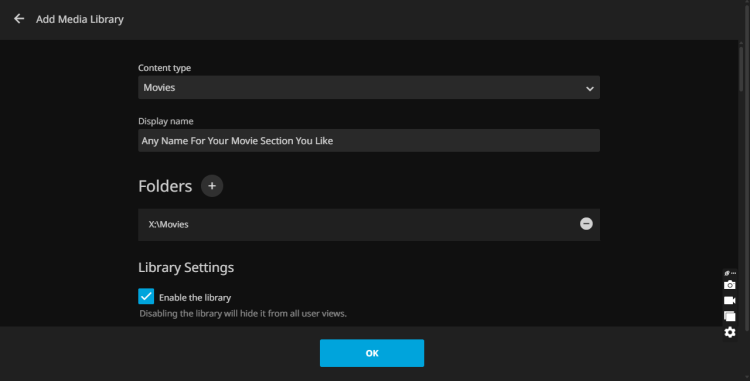
Select content type. For this Tutorial, we're using "Movies"
Display name is your "Category Folder name" So "Anime Movies" or "Live Action Movies" etc..

Select the "+" button next to folders and navigate to you "Movies" folder and select the "Category Folder"
As for Language and Country, select yours from the drop down boxes
Scroll down and select "Save artwork"
Trick play is up to you. I use it as I find the video plays smoother for me
Scroll down again and select "Enable Chapter" & Extract Chapter" Options
Then select your language for Subtitle Downloads.
Select "Open Subtitles, Only Perfect Match and Save Subtitles" options
Select Ok and your folder for this Category is done.
Add your media to your folders as described above.
Do one media/show/movie at a time and test it.
Go back to dashboard after you have added your media and hit "Scan All Libraries"
Once finished, go back to the main menu and you should now see any Categories and Media you've added.

If everything worked out, your media home page will start to look like the image above.
From here you can download the App from the PlayStore or the other store...you know the one...the bad apple, lol
Open the app and login. If your username and password don't work at first, use "Quick Connect" Option and your Jellyfin on PC to enabled or Allow Access.
That's it for this Tutorial. I think that's everything.
If I forgot anything or something isn't working just ask and I'll help the best I can.

___________________________________________________________________________________________________________________
***Bonus Stuff***
All aboard the Dragon's Claw, I'm your Captain, Captain Axiom Verge
Welcome to the High Seas.
For access to Media here, we have several options.
For Downloading...
Use Brave browser. This has worked the best for me. Blocks all ads on sketchy sites

Get the Extension "Stream Recorder" That's your fishing rod
It works well for capturing those pesky media

For Fishing...
Anime ---> 9Anime {Use Brave, lots of crappy ads}
Movies & TV Shows --> 123Movies {Use Brave}
Those two spots are good and Stream recorder downloads pretty well on both.
On 123, it can sometimes error out on a "fetch" just keep hitting "Retry" it'll pick up and finish.
You can use Youtube Dowloander to get Media from that Fishing Spot
YT Down is an online downloader, right from there site
This next one is really cool, but I've had issues with most of it.
It is a cracked version, so that could be it.
It's an all in one Downloader, so Netflix, Prime, Disney, HBO and others
You do need a legit account to the streaming site of your choice login to though.
It's called Pazu StreamGet {This is Version 2.8.6 - All services should work}
***Note***
It is a cracked version, it will set off your Anti Virus. I've had it installed for weeks and no issues.
I got mine from The Bay, you can try there for another copy or other Downloaders.
Good Luck and Show off your Media Library when you get it setup

Attachments
-
 35.9 KB Views: 11
 -
 49.7 KB Views: 11
Last edited:
