
 Trusted by over 1.6 million members since 2014 — why not join them?
- Gender
- Female
- Country
- Italy
Newtek Lightwave3D V2019.1.3 [Sprache: Englisch]

Description: Format: exe
Archiv: rar
Größe Archiv: 478MB
Plattform: Windows
Sprache:Englisch
NewTek LightWave 3D® ermöglicht es jedem, 3D-Künstler und Animator zu werden. Die Software ist erschwinglich, vollständig, einfach zu erlernen und zu verwenden und als eines der führenden 3D-Systeme auf dem Markt für die Herstellung von schönen Photo-Real-Rendern sowie unglaublichen Animes etabliert. Diese umfassende, sofort einsatzbereite 3D-Animationslösung bietet jetzt kollaborative 3D-Interaktivität in Echtzeit über eine Brücke zur Unreal Engine. LightWave 2019 Neue Funktionen:
Collaborative LightWave ™ in Echtzeit für die Unreal Engine.
LightWave 3D® geht mit dieser Workflow-Verbindung zwischen der Unreal Engine und LightWave 3D® in das Echtzeitzeitalter für den Austausch über, wobei der Fokus darauf liegt, dass LightWave Unreal-Änderungen iterativ steuert. Mehrere LightWave-Sitze können gleichzeitig mit demselben Unreal Editor verbunden werden, um eine Echtzeit-Zusammenarbeit zwischen Künstlern zu ermöglichen. Die Bridge verwendet den bewährten NDI®-Netzwerkerkennungsmechanismus von NewTek für eine einfache automatische Konfiguration. Sie kann auf die Verwendung einzelner Projekte in Unreal beschränkt oder als allgemeines Plugin für die Verwendung in allen Unreal-Projekten installiert werden.
Installation Instructions: 1.Just unzip where you want ...
###############################
# QUICKSTART #
###############################
HOW TO REFERENCE THIS CONTENT DIRECTORY IN LAYOUT
1) Launch LightWave Layout.
2) Type "o" to open the Preferences panel.
3) Click on the Preferences->Paths tab.
4) Click on the Content Directory button and choose the location of the content folder (ex: "LightWave_Content")
When you go to load a scene, Layout will automatically look in the "Scenes" folder of the content directory.
HOW TO REFERENCE THIS CONTENT DIRECTORY IN MODELER
1) Launch LightWave Modeler.
2) Type "o" to open the General Options panel.
3) Click on the Content Directory button under the General tab.
4) Choose the location of the content folder (ex: "LightWave_Content").
When you go to load an object, Modeler will automatically look in the "Objects" folder of the content directory.
THE QUICKEST WAY TO CREATE A NEW CONTENT DIRECTORY
1) Launch LightWave Layout.
2) Type "o" to open the Preferences panel.
3) Click on the Preferences->Paths tab.
4) Click on the Content Directory button and choose an empty folder as a content directory.
5) Click "Create Directories" to generate properly-named folders within this content folder.
###############################
# FURTHER READING #
###############################
HOW CONTENT DIRECTORIES WORK
The first step of starting any project should be to set the content directory for both Modeler and in Layout. By default, Modeler and Layout will try to load/save the appropriate files to each subdirectory of the set content directory. For example, Layout will look first in the Scenes directory when loading a scene, the Objects directory when loading objects, and the Images directory when loading images.
Unless it causes a problem, all assets (scenes, objects, images) should then be stored within the appropriate folders of that content directory.
HOW LIGHTWAVE SCENE FILES WORK
LightWave scene files are ASCII text files with the extension, "*.lws." An LWS file contains camera, lighting, rendering, keyframe, displacement, and plugin data. LightWave scene files can also reference binary files elsewhere on disk. If you use a text editor to view the LWS files contained under the "Scenes" directory, you will see that most of these LightWave scene files reference binary assets from disk.
Here are some examples of binary files that LightWave scene files can reference from disk:
- LightWave object files (*.lwo)
- image file references (ex: *.tga, *.png, *.tif, *.jpg)
- geometry cache file references (*.mdd, *.xml, *.abc)
- radiosity cache files (*.cache)
- temporary Bullet cache files (*.dynacache)
- ParticleFX cache files (*.pfx)
- HardFX cache files (*.bdd)
- (if using RealFlow) RealFlow *.bin files and *.sd files
- (if using TurbulenceFD) TurbulenceFD *.bcf
Referenced data can be reused across multiple LWS files. For example, an airplane model might be stored in a single LWO file. This LWO file can be used for several LWS files. Because the LWS files themselves are tiny text files, and because the LWO data can be reused over and over again, a LightWave project can make efficient use of hard drive space.
Changing a referenced file will also affect all LWS files that reference that specific file. This can be helpful during projects where modeling and animation may happen at the same time. If an artist updates the airplane model and saves over the original file, all scenes that reference that airplane model will display the updated airplane geometry and surfacing data when reloaded.
HOW LIGHTWAVE OBJECT FILES WORK
LightWave object files (*.lwo) are binary IFF files. In addition to mesh data, LightWave object files store their own surfacing data. Surfacing is not a property of the LWS file. Surfacing is a property of the LWO file. If you do not save the object after adjusting its surfacing in the Surface Editor, you will lose your surfacing adjustments.
LightWave object files can also store references to images.
RELATIVE PATHS VS ABSOLUTE PATHS
Ideally, the paths stored in an LWS or LWO file will be relative paths instead of absolute paths. If the assets are stored within the content directory used by Layout or Modeler, relative paths will be used. If assets are stored outside of the content directory, an absolute path will be used to reference the asset.
If all paths in an LWS or LWO file are relative paths, the user can move the content directory anywhere. The LWS and LWO files will still load correctly as long as the content directory for Modeler and Layout are updated to point to the new location of the content directory. Storing everything under one content directory makes projects easy to share, port and archive.
Download Link(s):
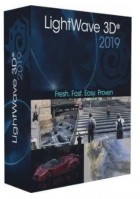
Description: Format: exe
Archiv: rar
Größe Archiv: 478MB
Plattform: Windows
Sprache:Englisch
NewTek LightWave 3D® ermöglicht es jedem, 3D-Künstler und Animator zu werden. Die Software ist erschwinglich, vollständig, einfach zu erlernen und zu verwenden und als eines der führenden 3D-Systeme auf dem Markt für die Herstellung von schönen Photo-Real-Rendern sowie unglaublichen Animes etabliert. Diese umfassende, sofort einsatzbereite 3D-Animationslösung bietet jetzt kollaborative 3D-Interaktivität in Echtzeit über eine Brücke zur Unreal Engine. LightWave 2019 Neue Funktionen:
Collaborative LightWave ™ in Echtzeit für die Unreal Engine.
LightWave 3D® geht mit dieser Workflow-Verbindung zwischen der Unreal Engine und LightWave 3D® in das Echtzeitzeitalter für den Austausch über, wobei der Fokus darauf liegt, dass LightWave Unreal-Änderungen iterativ steuert. Mehrere LightWave-Sitze können gleichzeitig mit demselben Unreal Editor verbunden werden, um eine Echtzeit-Zusammenarbeit zwischen Künstlern zu ermöglichen. Die Bridge verwendet den bewährten NDI®-Netzwerkerkennungsmechanismus von NewTek für eine einfache automatische Konfiguration. Sie kann auf die Verwendung einzelner Projekte in Unreal beschränkt oder als allgemeines Plugin für die Verwendung in allen Unreal-Projekten installiert werden.
Installation Instructions: 1.Just unzip where you want ...
###############################
# QUICKSTART #
###############################
HOW TO REFERENCE THIS CONTENT DIRECTORY IN LAYOUT
1) Launch LightWave Layout.
2) Type "o" to open the Preferences panel.
3) Click on the Preferences->Paths tab.
4) Click on the Content Directory button and choose the location of the content folder (ex: "LightWave_Content")
When you go to load a scene, Layout will automatically look in the "Scenes" folder of the content directory.
HOW TO REFERENCE THIS CONTENT DIRECTORY IN MODELER
1) Launch LightWave Modeler.
2) Type "o" to open the General Options panel.
3) Click on the Content Directory button under the General tab.
4) Choose the location of the content folder (ex: "LightWave_Content").
When you go to load an object, Modeler will automatically look in the "Objects" folder of the content directory.
THE QUICKEST WAY TO CREATE A NEW CONTENT DIRECTORY
1) Launch LightWave Layout.
2) Type "o" to open the Preferences panel.
3) Click on the Preferences->Paths tab.
4) Click on the Content Directory button and choose an empty folder as a content directory.
5) Click "Create Directories" to generate properly-named folders within this content folder.
###############################
# FURTHER READING #
###############################
HOW CONTENT DIRECTORIES WORK
The first step of starting any project should be to set the content directory for both Modeler and in Layout. By default, Modeler and Layout will try to load/save the appropriate files to each subdirectory of the set content directory. For example, Layout will look first in the Scenes directory when loading a scene, the Objects directory when loading objects, and the Images directory when loading images.
Unless it causes a problem, all assets (scenes, objects, images) should then be stored within the appropriate folders of that content directory.
HOW LIGHTWAVE SCENE FILES WORK
LightWave scene files are ASCII text files with the extension, "*.lws." An LWS file contains camera, lighting, rendering, keyframe, displacement, and plugin data. LightWave scene files can also reference binary files elsewhere on disk. If you use a text editor to view the LWS files contained under the "Scenes" directory, you will see that most of these LightWave scene files reference binary assets from disk.
Here are some examples of binary files that LightWave scene files can reference from disk:
- LightWave object files (*.lwo)
- image file references (ex: *.tga, *.png, *.tif, *.jpg)
- geometry cache file references (*.mdd, *.xml, *.abc)
- radiosity cache files (*.cache)
- temporary Bullet cache files (*.dynacache)
- ParticleFX cache files (*.pfx)
- HardFX cache files (*.bdd)
- (if using RealFlow) RealFlow *.bin files and *.sd files
- (if using TurbulenceFD) TurbulenceFD *.bcf
Referenced data can be reused across multiple LWS files. For example, an airplane model might be stored in a single LWO file. This LWO file can be used for several LWS files. Because the LWS files themselves are tiny text files, and because the LWO data can be reused over and over again, a LightWave project can make efficient use of hard drive space.
Changing a referenced file will also affect all LWS files that reference that specific file. This can be helpful during projects where modeling and animation may happen at the same time. If an artist updates the airplane model and saves over the original file, all scenes that reference that airplane model will display the updated airplane geometry and surfacing data when reloaded.
HOW LIGHTWAVE OBJECT FILES WORK
LightWave object files (*.lwo) are binary IFF files. In addition to mesh data, LightWave object files store their own surfacing data. Surfacing is not a property of the LWS file. Surfacing is a property of the LWO file. If you do not save the object after adjusting its surfacing in the Surface Editor, you will lose your surfacing adjustments.
LightWave object files can also store references to images.
RELATIVE PATHS VS ABSOLUTE PATHS
Ideally, the paths stored in an LWS or LWO file will be relative paths instead of absolute paths. If the assets are stored within the content directory used by Layout or Modeler, relative paths will be used. If assets are stored outside of the content directory, an absolute path will be used to reference the asset.
If all paths in an LWS or LWO file are relative paths, the user can move the content directory anywhere. The LWS and LWO files will still load correctly as long as the content directory for Modeler and Layout are updated to point to the new location of the content directory. Storing everything under one content directory makes projects easy to share, port and archive.
Download Link(s):
Download FileSince you're viewing the AMP-accelerated version of our website which doesn't store login cookies, please scroll to the bottom of this page and click on the "View Non-AMP Version" button first, thanks!
