
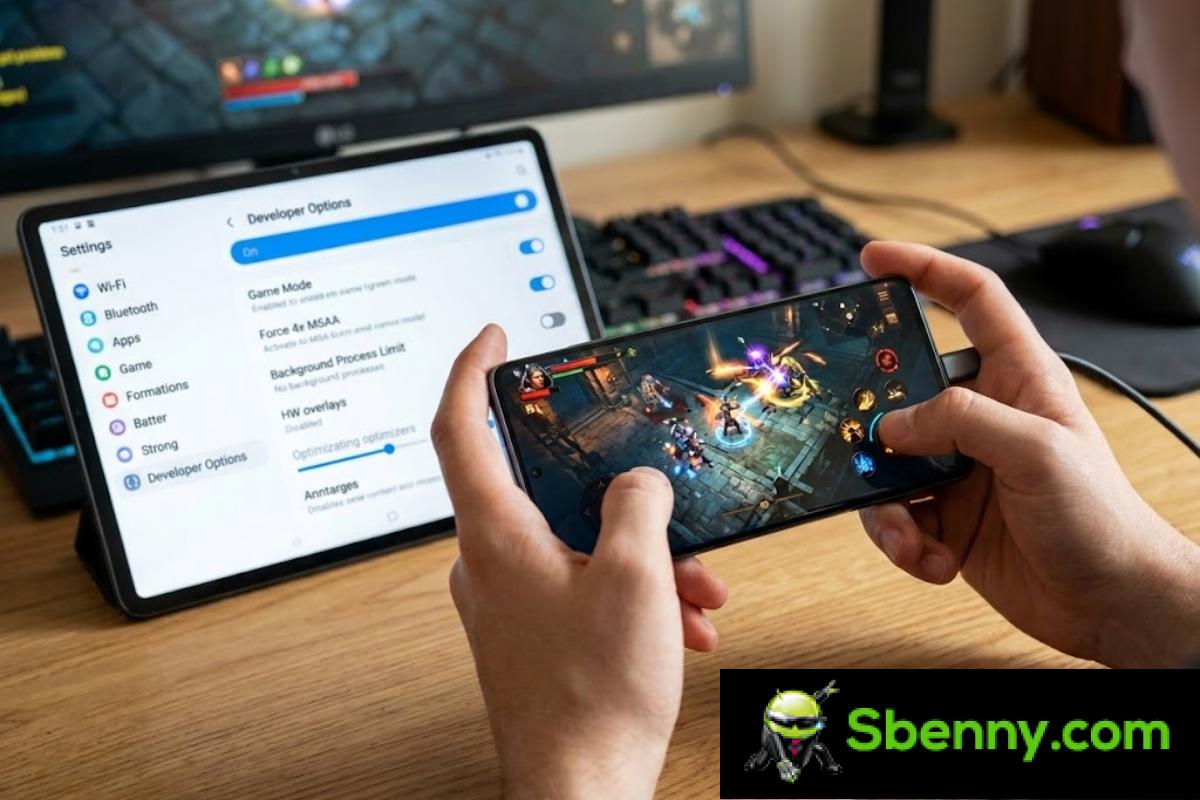
If you have been noticing for some time that your mobile responds late, the shots are delayed or the game becomes a kind of slideshow at the worst timeyou are not the only one. Many Android phones with good power on paper end up suffering from lag, jerks and freezes that ruin any competitive game.
The good news is that by tweaking a few system parameters, fine-tuning the connection, and doing some cleaning, you can greatly reduce lag without installing miracle applications. There is no magic trick that fixes everything, but there is a set of adjustments and good practices that, added together, make a brutal difference in online and offline games.
What is lag, ping and why your game is “stumbling”
Before we get into trouble, it is important to understand what is happening when you notice that the game does not respond well. The famous lag is that delay between what you do on the screen and what actually happens in the game. It can come from two fronts: the network (latency/ping) or the performance of the mobile itself (low or unstable FPS).
Ping is the time it takes for a data packet to go from your phone to the game server and back, measured in milliseconds. When the ping is low, everything feels immediate; when it shoots, you start to see rivals that “they teleport”, shots that do not register or deaths that you do not understand. Add to that the jitter, which is the variation in ping: if it goes from 30 ms to 180 ms all at once, chaos is assured.
On the other hand are the FPS (frames per second). If your phone is underpowered, the GPU and CPU cannot cope, and the image moves in fits and starts. On many occasions we blame the ping when in reality the problem is that the game It does not maintain a stable FPS rate and hangs for a few moments.
In addition, your Android handles a lot of tasks at the same time: background processes, synchronizations, apps that never close completely, backups, automatic updates… All of this competes with the game for system resources and for the same network connection you need to play smoothly.
What ping is considered good for gaming on Android
You don’t need to have the fastest fiber on the market to enjoy a good mobile gaming experience. What really rules is latency: How long does it take for the game server to respond to your actions?not how many megabytes you have contracted.
As a simple reference, a ping between 40 and 60 ms is usually acceptable for most users. After 100 ms you begin to notice that orders arrive with some delayand above 170 ms many competitive games become difficult to enjoy seriously.
If your goal is for everything to go “fine Filipino”, try to stay below 20 ms as long as the server is relatively close. At that range, every shot, dodge, or skill feels instantaneous and precise, something key in shooters and brawlers where every millisecond counts.
Of course, not all genders are equally picky about ping. In races and shooters it is advisable to stay below 50 ms to compete on equal terms. In MMOs or games with huge maps you can tolerate Slightly higher ping, especially in PvEwhile in direct PvP it is advisable not to exceed 150 ms. In MOBAs and real-time strategy, playing comfortably usually means moving under 150-200 ms.
How to measure your actual ping and detect problems
Before changing settings like crazy, it is worth measuring where you are starting from. The ideal is to check the ping directly from the game you usebecause that’s how you see the real latency against their own servers. Many titles allow network statistics to be displayed in some corner of the screen.
Enter the game options and look for sections such as “Performance”, “HUD”, “Network” or “Show statistics”. Activate any option related to ping or connection data and look at the number in milliseconds while you are in game: That figure will be your reference to know if you improve or worsen after each change.
If the game doesn’t offer that option, you can always run a speed test from your browser to get an estimate of your connection’s overall ping. It is not as precise as measuring it within the title, but if you already see it there rare spikes, very high values or frequent outagesyou know there is a basic problem with the network before you even open the game.
Keep in mind that latency can skyrocket due to a mix of factors: crashed mobile, saturated WiFi, poorly placed router, distant game server, slow DNS, downloads in the background… Understanding where your configuration is lacking is key to attack the problem where it really hurts.
First steps: cleaning and basic settings on your Android
If your phone has good hardware but you notice that it is lazy lately, it is usually because the system is fully loaded. Android tends to accumulate caches, stuck processes, unused apps, and residual data which, over time, take their toll in games and any demanding task.
Restart the mobile to “reset” stuck processes
It sounds like typical tech support advice, but it works: Turning your phone off and on again makes Android close hanging background processesfree up some of the RAM and boot lighter. If you haven’t restarted in days and notice that games open slowly or freeze, try restarting just before starting a long session.
After the reboot, the system has more resources on hand and less garbage running in the background, which results in Less jerks when loading maps, better response times and overall more stable behavior. It is a simple gesture that should be repeated from time to time.
Do a deep clean of apps and files
Another underrated classic: almost full storage is the direct enemy of performance. When the internal memory is about to burst, Android has problems managing caches, databases and temporary files, and the result is that everything is slower, from opening the gallery to starting a game.
Take some time to review what you have saved: delete applications that you don’t use, games that you no longer play, duplicate photos and videos, old downloads… Whatever you want to keep, upload it to the cloud, transfer it to the computer or move it to a card or external memory. The more headroom the system has, the smoother it will behave..
Many phones include a cleaning or maintenance tool in Settings, with options to delete temporary files, clean caches and optimize storage. You can use it with peace of mind if it is the one provided by the manufacturer, without having to install Third-party cleaning apps that sometimes make the situation worse.
Uninstall or limit gluttonous apps in the background
It’s not just about the space the apps take up, but what they do while you play. Social networks, messaging, cloud copy services or streaming apps may be syncing data, downloading content and consuming bandwidth continuously.
In Settings > Apps, check which ones use the most battery and data in the background. Consider uninstalling or deactivating those that are not essential and limit the background use of those that you know are they suck resources without stopping. Your game will thank you, both in terms of FPS and ping stability.
Optimize the launcher and the interface to gain fluidity
The launcher itself (the desktop, app drawer and system animations) also influences the feeling of speed. A heavy launcher, packed with widgets, effects and transitions, ends up eat some of the RAM and CPU your game could be using.
As a first step, go to Settings > Applications, locate the default launcher (usually called “Home”, “Home Screen” or similar) and clear its cache. This doesn’t touch your settings, it just deletes temporary data that may be slowing down animations and shortcuts. There is often an immediate improvement in how menus move and switching between apps.
If everything is still slow, consider switching to a lighter and well-optimized launcher, such as Nova Launcher or others similar. These launchers usually offer a clean interface, more sober animations and better resource management, which translates into a more agile system, even on mid-range or entry-level mobile phones.
The objective here is not to leave the mobile visually spectacular, but to make the customization layer get in the way as little as possible. The less loaded the interface is, the more available resources you will have when you open your favorite game.
Update Android, your games and, if you can, the router
Another key point is to keep both the system and the games up to date. Many times lag or performance problems come from software errors or incompatibilities that are resolved with simple updates.
Go to Settings > System > Update (or the equivalent name on your layer) and check if there are any new versions pending. Beyond new features, updates typically include improvements to power management, GPU, network modem, and overall stabilityall of which impacts gaming performance.
Do the same with the titles you use the most: from Google Play check if there are patches available. Developers update frequently to optimize servers, improve netcode and polish performance on certain mobile models. Having an outdated game can condemn you to continue suffering from bugs that have already been fixed.
The opposite can also happen: that, after a specific update, the jerks begin. If the problem appeared just after a patch, it may be a bug in that version and you will have to wait for it to be fixed or, if the game allows it, temporarily revert to a previous build.
Finally, if you always play from the same WiFi network, enter the router interface and see if there is a firmware update. Many operators release new versions that improve connection stability, reduce microcuts and correct security flaws which also affect the gaming experience.
Take advantage of Android game modes (Game Turbo and similar)
More and more manufacturers integrate a specific game mode (Game Turbo, Game Mode, Game Mode, etc.) designed to squeeze the hardware when it detects that you are playing. The idea is to concentrate resources on the game, limit background processes, improve touch response and prioritize network traffic.
On Xiaomi phones, for example, it is normally found in Settings within “Special functions” or “Speed settings in games”. Other brands group it into sections such as “Advanced functions” or directly “Game mode”. The important thing is to add your titles to the list so that, when you open them, optimizations are automatically activated.
In these panels you can activate options such as “high performance mode”, which allows the CPU and GPU to work at their full capacity, reduces WiFi latency and improves touch sampling. They also usually offer the possibility of block notifications, prevent incoming calls, and disable gestures that may minimize the game by mistake.
Keep in mind that these modes consume more battery and may make the phone a little hotter, but in exchange they give you a much more stable gaming experience, with less lag and fewer jerks. If your Android includes something similar, it is worth spending a few minutes to fine-tune it.
Prioritize game traffic and adjust connection
The power of the mobile phone is only half of the equation; The other part is the quality of your connection. It doesn’t matter if you have a top-of-the-range device if the WiFi is hiccups or is saturated by a thousand devices. Here they come into play the band you use, the WiFi channel, DNS and traffic management.
Traffic mode on Xiaomi to give priority to the game
If your mobile is Xiaomi, you may have the so-called “traffic mode”, very useful to reduce lag when there are many things pulling on the network at the same time. This function prioritizes the connection of the game you have in the foregroundcutting bandwidth for other apps and background downloads.
To check if your model has it, go into the settings of your WiFi network and look for “WiFi Assistant”. Inside you should see “Traffic Mode” if available. From there you can activate it and choose between two profiles: “Balanced” and “Quick connection”, the latter being ideal for playingas it focuses on minimizing game lag by sacrificing less important tasks.
This prioritization is especially useful if you share a network with other people watching high-resolution video, downloading files or using cloud services, or if your own phone frequently updates apps while you play something competitive. With traffic mode active, the game has absolute priority on the data highway.
Connect whenever you can via 5 GHz WiFi
Home routers typically offer two bands: 2.4 GHz and 5 GHz. The 2.4 GHz band goes further and passes through walls better, but it is often very crowded and offers less real speed. To play, it is best to connect your Android to the 5 GHz WiFi network, which has less interference and more bandwidth.
As much as possible, try to play near the router, without many thick walls or appliances in the way. A router locked in a piece of furniture, full of things on top or with old cables can be a factory of problems: signal drops, packet losses and ping spikes that turn any game into Russian roulette.
If you have access to the router settings, check which channel your WiFi is using. In the 2.4 GHz band, it is best to force one of channels 1, 6 or 11, which do not overlap each other. At 5 GHz there is more margin, but it can still be useful Choose a rarely used channel if your neighbors are saturating the environment.
Change DNS to improve response times
Another interesting adjustment is that of the DNS servers. Every time the game needs to connect to a server, the system asks “where is this domain?” This translation from name to IP is done by DNS, and if it is slow, the connection process takes unnecessarily long.
Instead of blindly trusting the operator’s DNS, you can try public alternatives such as those from Google or Cloudflare, or use specific tools that search which DNS responds the fastest on your network and your zone. Once identified, simply configure your IP in the WiFi or mobile network connection settings of your Android.
It is not something that is going to turn a bad connection into a professional line, but in many cases it does shave a few milliseconds when resolving addresses, speeds up matchmaking and can slightly improve the stability of communication with the game servers.
Control FPS and lower graphic quality when you touch
Much of the “lag feeling” actually comes from poor graphics performance. If your phone is just running and you ask it to move the game to maximum details and FPS, it will end up overheating and applying throttling, that is, lowering the power to avoid frying the processor. The result is stuttering, brief freezes, and FPS drops that we mistake for network issues.
Enter the game’s graphic options and review the available settings: level of detail, shadows, textures, resolution, special effects, draw distance and, of course, the frame rate (30, 60, 90, 120 FPS, depending on the case). Don’t be afraid to lower the visual quality a bit if that results in a stable image.
The ideal is to find a point where your phone can maintain a constant FPS rate without getting too hot. Many times it is better to lock the game at a stable 30 or 60 FPS, with average quality, than to try to go full speed and suffer drops to 20 FPS in the middle of a fight. Fluidity and quick response are worth more than four pretty reflections in the water.
Other useful settings that improve the gaming experience
In addition to the big blocks of performance and network, there are small details that, added together, make playing on your Android much more enjoyable. Some have to do with unlocking, others with notifications and screen behavior.
Improves fingerprint unlocking and touch response
If every time you want to enter the game you fight with the fingerprint reader, you are wasting time and patience. Keeping the sensor (or the part of the screen where the optical reader goes) clean and registering your fingers again helps make unlocking easier. faster, consistent and with fewer errors.
Take the opportunity to register the same fingerprint more than once (for example, the right thumb twice and the left thumb twice). This way, the system has more samples and recognizes your finger better even if you place it at strange angles. If you use an under-screen reader, try registering without intense direct light on the panel, creating shadow with the other hand so that the sensor better captures the fingerprint.
On some phones you can increase the touch sensitivity from Settings > Screen, something especially useful if you are wearing a protector. A more sensitive screen is more responsive when unlocking and playing, reducing touches that do not register or arrive with a slight delay.
Close apps in the background and pause downloads while playing
Before launching into a serious session, get into the habit of closing all the apps that you are not going to use: social networks, video players, music services, download clients, etc. It is also a good idea to temporarily disable the Automatic Google Play updates and cloud backupsso that they don’t start using the connection right in the middle of the game.
If you share WiFi, try to coordinate so that no one is downloading huge files or watching 4K content while you play something competitive. Many routers allow you to configure QoS (Quality of Service) to give priority to your mobile traffic over other deviceswhich can make a difference in times of saturation.
Taking care of these details and applying the settings that we have seen—from cleaning the system and optimizing the launcher to taking advantage of Game Turbo-type game modes, prioritizing traffic, using fast DNS and adjusting the FPS well—it is perfectly possible for a normal mobile phone, with a modest fiber and a well-configured WiFi, to offer Surprisingly stable games, with less lag, fewer jerks and a much more precise feeling of control in your favorite Android games.


Start a new Thread