

If you play more and more on your mobile and notice that touch controls slow you down, the time has come to make the jump to controls and accessories for Android. Between cloud gaming, console ports and competitive titles, today a smartphone can be your main console… as long as you pair it with the right hardware.
In this guide you will find a complete view of controls, supports and apps to get the most out of games on Android (and a good part will also be valid for iPhone). We will see what types of controls exist, what to look for before buying anything, how to connect a controller to your mobile, how to map buttons if a game does not support it natively and a good list of recommended models for all budgets.
Why it is worth using a controller on Android
You can play with the touch screen, yes, but a controller completely changes the gaming experience in shooters, platforms, fighting or sports. Hand position is more natural, movements are more precise and you can react faster in key moments.
Additionally, cloud gaming services like Xbox Game Pass, Steam Link or similar They feel much closer to a traditional console when you use a gamepad. In fact, a good part of its catalog is designed with a standard controller with sticks, analog triggers and D-pad in mind.
Finally, using a remote control helps you take care of your phone: you avoid having to press the screen all the time, you reduce ghost touches and you don’t cover the action with your fingerssomething that in competitive games ends up being a drama.
Types of controls and accessories to play on Android
Before looking at specific models, it is advisable to be clear about what type of command configuration fits you better. Not all players use their mobile phones in the same situations or with the same games.
1. Traditional controller + mobile holder
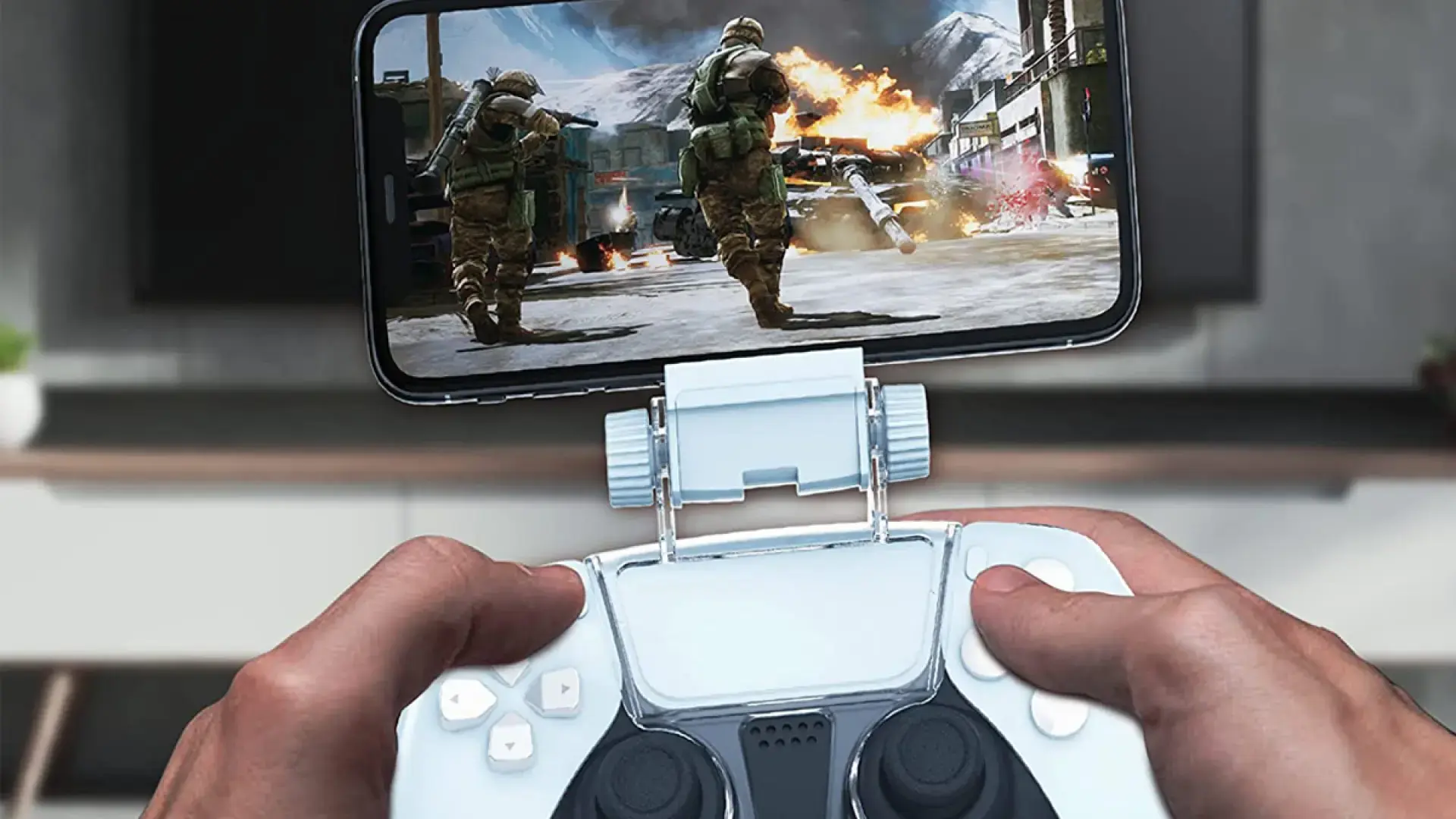
It is the simplest option: you take a console type controller (Xbox, PlayStation, 8BitDo, etc.) and connect it via Bluetooth to the phone. Then you use a clip or holder that attaches to the controller and holds the phone on top.
Clear advantages: if you already have a remote control at home, it is a solution very cheap and versatile. In addition, you can also use it on a PC, console, Smart TV or tablet. The only thing you need is a good adjustable stand that can hold the weight of the phone well.
It is an ideal combination if you usually play at home, on the couch or in bed, because your control+fabric set weighs more than a classic portable console. In mobility it can be used, but it is not as comfortable as other options that we will see.
2. Attachable “portable console” type controls
They are the controls that open and allow fit the mobile in the centermaking it something very similar to a Nintendo Switch or a dedicated laptop. Each side provides sticks, crosshead and buttons, and the whole is compact and easy to hold.
These controls can be connected via Bluetooth or directly to the USB-C or Lightning port of the mobile. Direct-connected ones offer virtually zero latency, which is perfect for competitive gaming, precision platforms or demanding cloud services.
The great advantage is the convenience when you play away from home: it is stored in the backpack, you unfold it, put your cell phone in the middle and you already have a real laptop in seconds. In return, you must pay close attention to the physical compatibility (width, thickness and camera modules) and the type of connector.
3. Specific “console-type” controls for mobile phones
Halfway between the two ideas, there are gamepads with classic controller design which already include a built-in phone holder. That is, you do not need to buy a separate clip: the remote control itself has its retractable “clip”.
They generally connect via Bluetooth or a 2.4 GHz USB dongle, and many are also compatible with PC, smart TV and other platforms. They tend to be very attractive for those who want something “all in one” without complicating their lives with extra accessories.
4. Large extendable and telescopic controls
Finally, there are the “frame” type controls or telescopic support that hug the mobile phone or even small tablets. They are a variant of the dockable ones, but designed for devices from 5 to 10 inches, ideal if you also want to play on a compact tablet.
They tend to opt for Bluetooth connectivity and prioritize comfort and autonomywith generous internal batteries or even extra functions such as support for customizable keys.
Key aspects before buying your Android controller
When deciding which gamepad to take home, it’s not enough that it “looks pretty.” There are several factors that will mark the experience and that should be reviewed calmly to Don’t waste money or get surprises.
Compatibility with your mobile, OS and games
The first thing is to check that the controller is compatible with your android version (or iOS if you are also going to use it on iPhone). Almost all modern models use recent Bluetooth and work without problem, but on very old phone models there can be problems.
Equally important is to see if your mobile phone physically fits on the controller, in the case of attachable or telescopic models. You have to look at the inch and thickness range that it supports, and also the camera module: some phones have cameras so large that they collide with the body of the controller.
Finally, each game is a world. On Google Play many indicate “Controller Compatible” or show a controller icon on the tab. If there is no information, you can try directly: enter the game with the controller connected and move the menus, if it responds, it is supported.
Connection type: Bluetooth vs USB-C port
Mobile controls are normally connected by Bluetooth. This makes them compatible with a lot of devices and also allows them to be used on tablets, TVs and computers. No cables, no mess and very comfortable to play anywhere.
The alternative is the controls that plug into the charging port (USB-C or Lightning). In this case there is practically no latency, because the signal goes over the cable. For shooters, fighting games or very fast titles this is more noticeable than it seems.
The downside of USB-C controllers is that they are limited to mobile phones with that connector and sometimes only to specific models by size. Bluetooth, on the other hand, works for almost any device, but you will always have a little more delay in the signal, although in most casual games you won’t even notice it.
Battery, power and autonomy
Another key aspect is how the controller is powered and how long it lasts. There are models with internal rechargeable battery and controls that draw AA or AAA batteries. Experience shows that rechargeable batteries are ideal: they tend to last longer and you forget about buying batteries every now and then.
Some smartphone controls come with very useful extra functions, such as fast charging or automatic shutdown systems after a few minutes of inactivity, which help extend battery life. Others, especially those that connect to the mobile port, include a second USB-C so you can continue charging your phone while you play.
Also keep in mind that certain controllers consume part of the phone’s own battery, and that playing in the cloud or heavy titles already causes the phone to heat up and drain quickly. How much the more efficient the gamepadbetter for your long sessions.
Ergonomics and build quality
It’s not a good idea to scratch here. A cheap controller with poor ergonomics can ruin your games. Make sure it has a comfortable shape for your handstextured or rubber grips and that the weight is well distributed, especially in attachable controls where the mobile phone is in the middle.
The sticks must move smoothly and precisely, the crosshead respond well in diagonals and the buttons have a pleasant travel and click. There are models with mecha-tactile switches or with Hall effect sensors in sticks and triggers to avoid drift problems and excessive wear.
Number of buttons and useful extras
Not all gamepads include the same number of buttons. For most titles, the standard layout (two sticks, D-pad, four face buttons, triggers and shoulders) will suffice, but if you like to play shooters or competitive games, they will come in handy additional programmable buttons in the back.
Some controls also offer functions such as turbo or rapid fire modedouble vibration, customizable RGB lighting or configuration profiles saved in memory. They are not essential, but they do make a difference if you want something more “pro”.
Price and quality-performance ratio
There are very decent controls on the market for less than 30 euros and others that are close to the professional console models. The important thing is that you don’t just focus on the price: assess the compatibility, ergonomics, construction and brand support.
A bargain remote that falls out of adjustment after two months or that is not comfortable for you will end up in a drawer, and in the end you end up buying a better one and spending twice as much. Better to bet first on a model with good value for money and that it adapts to what you really play.
How to connect a Bluetooth controller to your Android mobile
Pairing a wireless controller to Android is quite simple, as long as the gamepad is compatible. The general steps are similar in almost all models and only the button combination to put the remote in pairing mode varies.
On mobile, just go to Settings > Connected devices / Bluetooth / Connections and activate Bluetooth if it is not already. Meanwhile, turn on the controller and activate its pairing mode (usually by holding a specific button for a few seconds, which usually flashes).
When the gamepad name appears in the list of available devices, select it and accept the pairing. As soon as it is completed, Android will recognize it as input driver and, if the game supports it, you can use it directly in menus and games.
Be careful: not all Google Play games accept controllers natively. In some you will see that the character does not respond or that only some buttons work. In those cases you can use remapping applications to “translate” the remote buttons into screen touches.
How to know if a game is controller compatible
There are several ways to find out. The most direct is to look at the game listing on Google Play and look for a command icon or “Driver Compatible” type phrases in the information section. Quite a few titles clearly indicate this.
If they don’t say anything, you can do a quick test: connect the controller, enter the game and try to move through the menus using the D-pad or the sticks. If you see options highlighted and selected with the A/X button, it means that title supports controllers.
You can also use player communities, forums or social networks. In popular games like Call of Duty: Mobile, Genshin Impact, Apex Legends or similar, there are usually many comments about which controllers work well and if any are needed. special configuration.
Apps to map and configure controller buttons
When a game does not officially support controllers, there are applications that allow you to create an intermediate layer: the controller sends button signals and the app converts them into virtual touches on the screen. This way you can use the gamepad even if the title was not designed for it.
Mantis Gamepad Pro (Beta)
It is specifically designed for popular titles such as Apex Legends Mobile, Genshin Impact, PUBG Mobile, Call of Duty: Mobile, Wild Rift and others similar. You can adjust button position, sensitivity, dead zones and save different profiles depending on the game.
Additionally, it allows you to go beyond simple remapping: you can create advanced profiles, macros and schematics different, so that with one touch you can change the entire configuration when going from a shooter to a racing game, for example.
Very important: in competitive online titles, using apps of this type can go against the Terms of Service. Some anti-cheat systems can detect these tools and apply sanctions, from temporary suspensions to permanent bans. It is a good idea to review the rules of each game before launching.
Other configuration tools
There are applications such as certain assistants for Xbox controllers or HID utilities that help Android correctly recognize the gamepad and reassign buttons if the default layout does not convince you.
In many cases the process is as simple as holding down a button on the controller within the app and choosing what function you want to assign to it. They also usually offer a button Reset to return to factory settings if you get involved trying things.
What to take into account when choosing a controller: quick checklist
As a reminder, these are the points that should be reviewed mentally before deciding on one model or another and starting to configure your mobile gaming setup.
- Compatibility: with your version of Android, your current mobiles/tablets and, if you can, with other platforms (PC, TV, consoles).
- Supported size: especially important in attachable or telescopic controls; check inches, thickness and chamber.
- Connectivity: Bluetooth (more universal), USB-C/Lightning (less latency), 2.4 GHz with dongle (very stable for PC or TV).
- Feeding: rechargeable battery versus batteries, hours of autonomy and presence of fast charging or pass-through.
- Ergonomics: controller shape, weight, grips and button layout; If you can, try it in hand.
- Buttons and extras: vibration, analog triggers, additional buttons, turbo, lighting and configurable profiles.
- Value for money: Don’t choose just by price; See reviews, materials and firmware support from the brand.
Recommended controls and accessories for playing on Android

Below you have a selection of controls and accessories that cover different uses and budgets. Everyone follows the ideas that we have been discussing: good ergonomics, wide compatibility and balanced features for mobile gaming.
Razer Kishi (V2/V3): the classic reference dockable
The Razer Kishi has become one of the best-known mobile controllers. It is an attachable model that places the phone in the middle, with a design very similar to a portable console. There are specific versions for Android (USB-C) and for iPhone (Lightning or USB-C depending on generation).
By connecting directly to the mobile port, latency is minimal. Furthermore, it integrates a extra USB-C port to be able to charge the phone while you play, something key if you are going to spend several hours hooked on Game Pass or demanding games.
The most recent versions improve ergonomics with more traditional grips, add programmable buttons on the back and even allow you to use small tablets like iPad mini in the most advanced model. It is a safe bet if you want something quality that folds up and takes up little space in your backpack.
GameSir X2 Pro and X4: versatility and customization
GameSir competes head to head with Razer in attachable controllers. The X2 Pro is reminiscent of the first Kishi, with a slim body and a style similar to a Switch Lite, but adds interesting details such as buttons interchangeable and customizable layout.
Officially licensed by Xbox, the X2 Pro includes a center button similar to that of Microsoft controllers, something that fits perfectly if you play a lot via Xbox Game Pass in the cloud. In addition, you can change the button layout (Xbox type or Nintendo type) and use different types of included sticks.
The GameSir X4 goes one step further: it incorporates sticks and triggers with Hall effect sensors to avoid driftbuttons with a useful life of millions of presses and several interchangeable components (sticks and crossheads) to adjust the touch to your liking.
When closed, the X4 is very compact and easy to transport, very much in line with offering a powerful gaming “travel kit” for Android and iPhone. If you value the customization and durabilityis one of the most interesting in its category.
GameSir T4 Pro and G4 Pro: versatile controllers with support
If you prefer a “old-fashioned” controller with integrated support for your mobile phone, GameSir models such as the T4 Pro or the G4 Pro are the best quality-price ratio. They maintain the classic silhouette of a console controller with sturdy folding clamp that holds the phone above it.
They offer multiple connectivity (Bluetooth, 2.4 GHz with dongle and USB cable), compatibility with Android, iOS, Windows, Nintendo Switch and more, as well as double vibration, high sensitivity sticks and autonomies that range between 15 and 20 hours depending on use.
They are perfect if you want a controller that works for everything: playing on your mobile, then switching to the PC, trying on the TV in the living room… without having to have a different controller for each device. The aesthetic is quite gaming, with lighting in some models, but without being exaggerated.
Compact controllers: 8BitDo FC30 Zéro 2 and similar
If what you are looking for is something very small that you can always carry with you, controls like the 8BitDo FC30 Zéro 2 are a delight. They have a ultra compact sizeideal to put in your pocket or in a case and use them anywhere.
Their strong point is portability: they work via Bluetooth with Android, iOS, Windows and macOS, and although they do not include physical support for the phone, you can rest the mobile phone on the table or a stand and play with the gamepad in your hands.
Obviously, you sacrifice ergonomics and the number of buttons compared to larger controls, but in exchange you have a light, cheap accessory that takes up minimal space. For retro games, simple or indie platforms, they are great.
iPega PG-9083S type extendable controls
Extendable controllers like the iPega PG-9083S opt for a somewhat different design: they offer a Telescopic holder for 5 to 10 inch deviceswhich includes large mobile phones and tablets. The result is similar to holding a tablet with console-type grips.
This type of controller connects via Bluetooth and usually includes advanced configuration options, as well as generous autonomy of around 20 hours. It is very practical if you want to use both your smartphone and a small tablet to play.
Cheap alternatives: Mars Gaming MGPX, Nacon MG-X and others
If your budget is tight but you don’t want to buy just anything, models like the Mars Gaming MGPX or the Nacon Holder MG-X offer very good value for money. They are controls designed for mobile phones, compatible with Android and also with PC in some cases.
The MGPX, for example, is a Bluetooth controller with integrated support for phones up to almost 7 inches, vibration, configurable RGB lighting and some 8 hours of autonomy per load. Ideal as a first command if you don’t want to make a large outlay.
The Nacon MG-X, for its part, is a retractable dock with an Xbox-style button layout, Bluetooth connectivity and up to 20 hours of battery life. It covers the role of “Transform your mobile into a portable console” very well without raising the price too much.
Console controllers and Joy-Con: take advantage of what you already have
If you already have Xbox, PlayStation or even Nintendo Switch Joy-Con controllers at home, it is very likely that you can take advantage of them with your Android mobile without buying a new gamepad.
The Xbox One/Series controllers and the PlayStation DualShock 4/DualSense connect via Bluetooth to Android quite directly. You just have to put them in pairing mode, search for them from your mobile and link them. From there, they work like any standard controller.
In the case of the Joy-Con, they can also be paired as two separate controllers, although not all games will recognize them well and you may need support apps. additional mapping or configuration. Still, they are a good way to “recycle” hardware you already have.
Of course, with console controllers you will almost always need a specific clip or support If you want to play while holding your phone and controller as a single set. Without it, you will have to rest the phone somewhere while you play with the controller in your hands.
Advanced profiles, macros and adaptive vibration
For the most demanding players, a good controller doesn’t stop at plugging in and playing. Remapping apps and tools from the manufacturers themselves allow you to create profiles per game and macros that trigger button sequences with a single press.
This is especially useful in fighting games, ARPGs, or skill-heavy titles, where you want to chain actions together very quickly. You configure the sequence in the app, assign it to an extra button on the controller and thus execute Consistently complex combos.
If your controller supports advanced vibration, you may also want to activate the adaptive vibration settings from the manufacturer’s app or from the game itself, so that the haptic feedback react to shots, impacts and crashes in more detail, bringing the experience closer to what current consoles offer.
This entire ecosystem of options makes a good gamepad turn your Android into a authentic portable game machinewith controls so refined and comfortable that it is difficult to return to the touch screen depending on what genres.
With all this information on controller types, connections, autonomy, ergonomics, compatibility, mapping apps and recommended models, you have practically everything you need to set up your own gaming “setup” on Android, choose the accessory that best fits your way of playing and get much more out of both Google Play games and cloud gaming services without touch controls being a burden.


Start a new Thread