
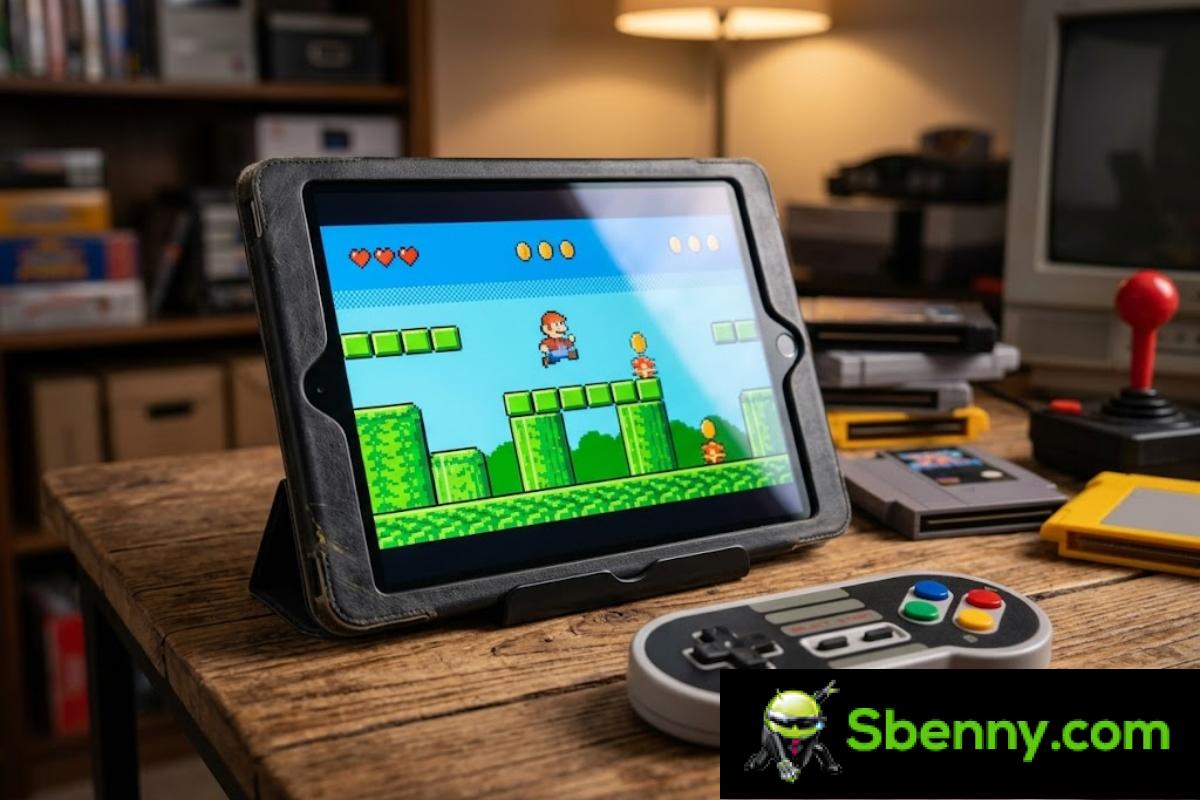
Turn an old tablet into a kind of retro game center It’s one of the most fun and cheapest ways to give a second life to a device that would otherwise end up in a drawer. Although your tablet is no longer able to compete with current models, it still has plenty of power to run emulators, classic games and undemanding titles that can give you hours of entertainment.
In your case, with a tablet with 1.3 GHz quad-core processor, 1 GB of RAM and 16 GB of storage (between internal memory and SD card) and a somewhat damaged touch screen, there is room to build a very neat little retro console. By combining a cheap keyboard, an OTG cable and, above all, a good external controller, you can almost completely forget about the touch screen and focus on playing as if you had a portable pocket console.
What do I need to turn my tablet into a retro console?
Before talking about games and emulators, it is important to be clear about what hardware and accessories You will need them to get the most out of your old tablet. The more you take care of this part, the better the experience will be and the less you will notice the limitations of the device.
Specifications of your tablet: are they enough?
Your device mounts a 1.3 GHz quad-core, 1 GB of RAM and 16 GB of storage (8 GB internal plus an SD card). Although these figures seem very modest today, for the retro world they are more than acceptable. To emulate classic 8- and 16-bit consoles, and even some older 32-bit ones, you won’t have any big problems.
Where we do have to be realistic is on the issue of demanding games and modern console emulators. With so little RAM and a tight processor, it is better to forget about emulating more advanced 3D consoles or playing very heavy and recent Android titles. The strong point of your tablet will be everything retro, pixel art or undemanding in resources.
Touch Screen Problems and How to Get Around Them
You mentioned that the bottom part of the screen stops respond to touch after a few minutesbut it works again if you turn the screen off and on (without completely turning off the tablet). This, for gaming purposes, is a major annoyance, because many mobile titles rely entirely on the touch screen.
However, since the idea is to turn it into a retro console, you can minimize the use of touch and rely almost entirely on external devices such as controllers, keyboards and mice. This way, even if the screen fails from time to time, it won’t ruin your games. It will serve more as a simple monitor to watch the game.
Key accessories: keyboard, OTG and controllers
You have already taken a good first step by purchasing a cheap keyboard and an OTG cable to connect it to your tablet. The keyboard helps you navigate menus, type WiFi passwords, or search Google Play or your emulators without relying as much on the touch screen.
The accessory that most improves the experience is a external control. Here you have two main options, each with its advantages:
- Wired controller with OTG: connects via the OTG adapter to the tablet port. They are usually cheaper, have less latency and do not depend on an internal battery.
- Bluetooth controller: Links wirelessly and saves you from hanging cables. They are much more comfortable to play on the couch or in bed, and many Android games support them natively.
If you want the most similar experience to a retro portable consolea classic gamepad-type Bluetooth controller (with crosshead, sticks and front buttons) is the best investment you can make. On older tablets they usually work without problems as long as Bluetooth is well supported by the system.
Optimize your tablet: getting the most out of it
Before filling your tablet with games, it is worth spending some time optimize performance of the device. A couple of basic adjustments can make a big difference in the fluidity of the games and in ensuring that everything does not freeze or close at the first attempt.
Cleaning apps and storage
with just 16 GB total storageevery mega counts. Leave the tablet as clean as possible: uninstall apps you don’t use, delete data from old apps, clean the cache and move everything that can be moved to the SD card. The more free space you have, especially in internal memory, the better the system will perform and fewer problems you will have with the facilities.
If the manufacturer includes any tool cleanup or storage manageruse it to delete junk files, duplicate photos, or old downloads that you no longer need. The idea is to dedicate almost all the available space to games, ROMs and emulators.
Performance and refresh rate settings
Many customization layers in Android include type modes “Game Booster” or “Game Mode” that prioritize performance when they detect a running video game. If your tablet has something similar, activate it to get the most out of the processor.
It is also advisable to review the screen settings and refresh rate. Although your tablet probably does not have high frequencies like 90 or 120 Hz, you can adjust the brightness, auto-off time and other parameters to reduce consumption and prevent it from getting too hot. Moderate brightness and disabling unnecessary animations will help your Quad-core CPU becomes more relaxed.
Lightweight Android games and accessible catalog
Your tablet, no matter how old it is, still has access to the Google Play catalogand there are a ton of games that don’t need too much power. The key is to focus on titles undemanding and retro style that work well with 1 GB of RAM.
Retro-style and undemanding games
On Google Play there are many games with pixel art aesthetics and simple mechanics that were designed for modest devices. They usually weigh little, consume few resources and work very well even if the hardware is old.
Some examples of categories that tend to be fine on tablets like yours are: 2D platforms, simple roguelikes, puzzles, retro RPGs and minimalist indie games. The game does not have to be officially “old”; Just don’t ask for complex 3D graphics or advanced effects.
Bluetooth controller and game compatibility
Many Google Play games are already prepared to be used with Bluetooth controlswhich is great considering the problem with the touch screen. Before installing a game, you can take a look at the description and see if it mentions support for a gamepad or external controller.
In action, fighting, platform or driving titles, the experience with a physical control is infinitely better. Not only will you have more precision, but you will avoid areas of the screen that do not respond well to touch and you will forget about uncomfortable touch controls.
Take advantage of games included with services like Netflix
If you’re a Netflix subscriber, you probably don’t know that you can access their mobile video game catalog at no additional cost. Among these games there are some of quite high quality and, in many cases, with a certain classic or retro feel that fits very well with what you want to create.
Within the Netflix catalog there are titles that stand out especially, such as GTA: San Andreas either TMNT: Shredder’s Revengewhich may be available depending on the region and compatibility of your device. GTA: San Andreas is an open world classic that can be a bit tight on such a limited tablet, but it’s not impossible if you adjust the graphics and accept some strain. TMNT: Shredder’s Revenge, for its part, is a beat ’em up with a retro aesthetic that fits perfectly with the idea of a classic console.
Turn it into a true retro emulation center
The real leap to transform your tablet into a retro console comes when you enter the world of emulators. Thanks to them you can revive entire systems from the past, from 8-bit consoles to some more modern systems, depending on what your hardware can do.
Lemuroid and other emulators for Android
On Google Play you have very complete options such as Lemuroidan all-in-one emulator that supports several classic consoles and is designed to be easy to use. Its interface is clean, it integrates well with external controls and, in general, works great on modest devices like yours.
In addition to Lemuroid, there are other specialized emulators per system (for example, only for Super Nintendo, only for Mega Drive, etc.). But if you want something practical and not complicated, Lemuroid is a great starting point to build your retro collection in a single app.
What consoles can you emulate with your hardware
With a 1.3 GHz quad-core processor and 1 GB of RAM you can aspire to emulate classic consoles without many problems. 8 and 16 bitsand some less demanding 32-bit ones. On a practical level, this means that your tablet should handle with relative ease:
- 8 bit consoles: NES, Master System, Game Boy, Game Boy Color.
- 16 bit consoles: Super Nintendo, Mega Drive/Genesis, PC Engine.
- Classic laptops: Game Boy Advance usually works quite well on this type of hardware.
When you move up to more advanced 3D consoles (like PlayStation, Nintendo 64, Dreamcast or similar), things get more complicated. Some games Original PlayStation They may work, but you will probably have to lower the resolution and assume jerks or performance drops. For N64 or higher, it is normal for the experience to be irregular, so the key will be to focus on what retro 2D or 3D very simple.
Organize your ROMs and configure controls
For a comfortable experience, create a clear folder structure (for example, “NES”, “SNES”, “GBA”, etc.) and save the corresponding ROMs inside each one. This way, any emulator you use will be able to detect your collection without you having to get too dizzy.
Then, from the chosen emulator, configure the Bluetooth controller or wired controller controls. Assign the main buttons well (A, B, X, Y, L, R, Start, Select…) and, if the emulator allows it, save several profiles for different systems. This will save you from having to reconfigure every time you change consoles.
Play your PS5 on the tablet with Remote Play
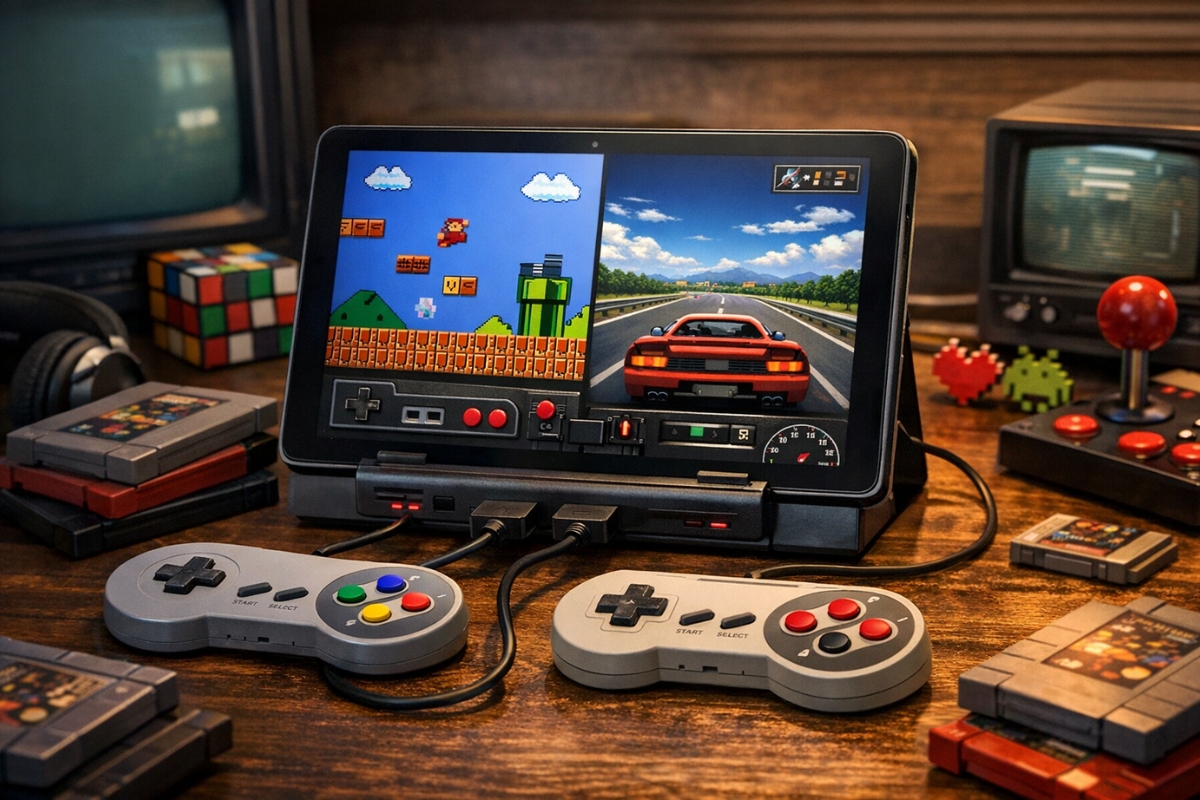
In addition to emulating old consoles and using Android games, your tablet can also serve as secondary screen for your PS5 thanks to the PS Remote Play function. Even if your tablet doesn’t have much power, in this case almost all the hard work is done by the console itself.
How PS Remote Play works
PS Remote Play streams the image and sound of the PS5 to your tabletwhile it sends back the remote keystrokes. You need a good WiFi connection, a PlayStation account and follow the official steps to pair the device with the console.
Once everything is set up, you can play on the tablet while someone else is using the televisionsomething very useful if you share a living room. Even if the camera and graphical power of the tablet are not brilliant, it doesn’t matter, because what is shown is the streaming video from the console.
Limitations: latency and type of recommended games
Of course, the great enemy of this configuration is the latency. In games that require an immediate response (competitive fighting, very fast shooters, etc.), you will notice some delay between what you do on the controller and what you see on the screen, which can be uncomfortable.
On the other hand, for games of adventure, role-playing, not very demanding platforms or more relaxed titlesPS Remote Play can be perfectly enjoyable even on an older tablet. It is not a perfect solution, but to enjoy your PS5 games from the bed or the sofa, without monopolizing the television, it does its job.
What kind of games can you expect to perform well?
With your tablet’s specs and focus on retro gaming, it’s important to adjust expectations about What titles can you move with ease? and which ones are best left aside. If you choose well, the experience can be very satisfying.
Games that will go without too many problems
Everything that falls within the segment retro or undemanding It is your ideal terrain. These include:
- Simple 2D games from Google Play: classic platforms, light roguelikes, 2D shooters, etc.
- Emulation of 8 and 16 bit consoles: like NES, SNES, Mega Drive or Game Boy.
- Game Boy Advance and some 32-bit consoles: Almost all GBA titles will do quite well.
- Recent indie games with pixel art aesthetics: They are usually very well optimized.
You can also enjoy many Netflix games and other services as long as they are not too heavy or designed for very modern hardware. The key is to try and stick with those that feel fluid and without constant pulling.
Games that can go very fair or directly bad
With such discreet hardware, it is normal that modern and highly detailed 3D games function with difficulties, if they are implemented at all. In these cases, even if you manage to start them, the experience can be frustrating due to performance drops, unexpected closures or frozen screens.
In the field of emulation, consoles like Nintendo 64, Dreamcast, PSP or even PlayStation In some intensive 3D titles they will put your tablet on the ropes. It’s not impossible for some specific games to work, but you’ll have to spend time testing resolution, frameskip, and optimization settings, and even then there’s no guarantee they’ll work fine.
Finally, keep in mind that if your tablet’s operating system is very old, some modern Google Play apps are no longer supported. In those cases, it will be necessary to look for previous versions or lighter alternatives.
If you spend some time cleaning the tablet, install a good emulator like Lemuroid, you get a comfortable Bluetooth controller and you select your games well, that tablet that seemed destined to retire can become a very decent retro gaming center. Between classic titles from 8 and 16-bit consoles, light games from Google Play, interesting options included in services like Netflix and the possibility of using PS Remote Play to play a game on the PS5, you have a huge range of possibilities. In the end, the important thing is to accept the limitations of the hardware, focus on what really moves well and enjoy that mix between nostalgia and recycled technology that turns a simple old tablet into a small console with a lot of charm.


Start a new Thread