
introduction
Realme 10 Pro and 10 Pro+ are the first Realme phones to come out with Android 13. There is little you can see from the original Android interface as Realme uses its own custom Realme UI, now in version 4.0.

It’s good that Realme UI 4.0 combines the optimizations of Android 13 and Realme UI, so you won’t miss the features of either.
Highlights of Android 13 include:
- Expanded customization options.
- Copy and paste improved.
- Improved media controls.
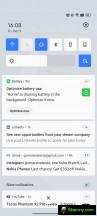
- Easier notification control with new permissions.
- Spatial audio support, Bluetooth LE audio support.
- Improved privacy.
- Built-in QR scanner.
Realme UI 4.0 also brings a number of updates:
- New card-like layout, new simplistic icons.
- Always-on display enhanced with music controls.
- Dynamic widgets.
- Large folders.
- Auto Pixelate personal information on IM screenshots.
- Upgraded private safe with Advanced Encryption Standard (AES).
And now, let’s take a closer look at this new software suite. We used the Realme 10 Pro+ as our test subject, as it’s our most feature-rich phone yet with Realme’s UI. However, some Realme phones may not have all the features we are about to explore.
Android 13 and Realme UI 4
Always-on screen is available and can show the usual content: clock, date, notification icons and battery, but you can turn off some information. The AOD has been expanded with Realme UI 4.0 with various themes, clocks and even custom templates for you to design. The AOD now also supports Spotify media controls.
The AOD can be energy saving (hide after a short period of inactivity), scheduled or always on.


Always-on display
And here’s a comparison with Realme UI 3’s Always-on Display – a simple option, though still able to get the job done.

Realme UI 3 Always-on display
One of the new always-on view options is Insight’s always-on view. See a timeline with data about each time you unlocked and used your phone during the day. It’s sort of an addition to Android’s Digital Wellbeing system, so you can track how much you use your phone.
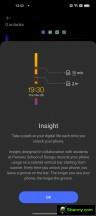
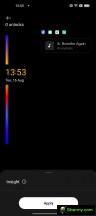
Insight display always on
And while we talk about customization, Realme UI 4.0 is flexible when it comes to that. There’s a whole page of styles (and wallpapers) in Settings. You can change wallpapers (live and static), switch to different icon packs, different quick-switch icon shapes, change fonts and choose completely different colors that will change the whole look of the Realme UI. Several AOD themes and fingerprint scanner animations are also available. You can even turn on/off the edge lighting, which is independent of the Always-On Display.
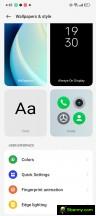
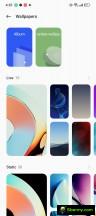


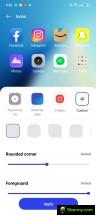


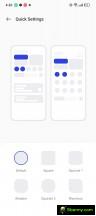
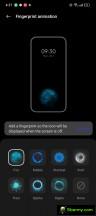

Personalization options
Realme UI 3 has a similar customization page, but some of the options are laid out differently.
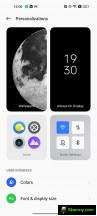
The old customization page
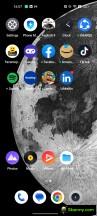
The launcher has no-nonsense home screens, a simplistic and clean notification/activation area, and an easy-to-use task selector.

An app drawer is also available, and it’s as clutter-free as one might hope. If you prefer, you can turn off the app drawer.





Realme UI 4.0
There is also an expanded search page with dynamic widgets.



The new research • The new research • The old research
And this is Realme UI 3 on Realme 10 with the old Google search page.


Realme UI 3.0
The new launcher adds support for large folders and dynamic widgets. Any folder can be zoomed in or out quite easily – just tap and hold it to enable/disable this feature. Naturally, a large folder can have multiple pages with apps. If you tap a visible link in the folder, the app opens instantly. Or tap the folder name to expand it.



Large folders
Meanwhile, the new Realme widgets are not many, but they update in real time and always show relevant information.

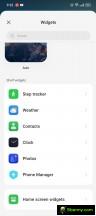
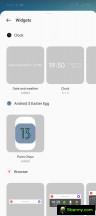

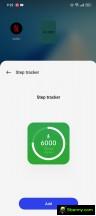

Dynamic widgets
Dark mode is available, but unlike before it doesn’t offer three different dark styles. Instead, Realme UI 4.0 uses a combination of the previous three shades of gray.
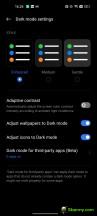
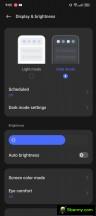

The old dark mode • the new dark mode
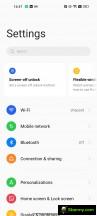
There are many powerful tools in the settings menu if you want full control over your Android operating system. Or you can leave everything as it is and enjoy a smooth Android experience optimized by Realme’s AI algorithms and machine learning.

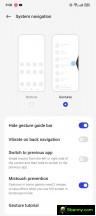
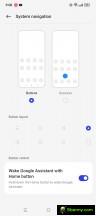

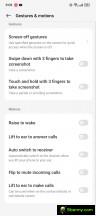

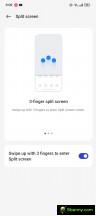
Settings
You can also minimize an app into a floating window, now called a flexible window, because it’s super easy to resize on the go. You can swap files between full screen and flexible apps by dragging and dropping.
Flexible windows are available within the task selector or sidebar. If an app is compatible, you can do one of these things or use the familiar split screen.



Task Manager • Split Screen • Flexible Window • Flexible Window
And speaking of the sidebar, it’s familiar enough: a small visible sign at the edge of the screen that expands into a menu whenever you scroll through it. You can customize the actions for this menu and the app shortcuts that appear there.
The smart sidebar also offers background streaming, which means you can put YouTube or any streaming app in the background and it will still play the audio. It works even when the screen is locked. Clean!
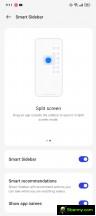



Smart sidebar
Realme UI 4 (especially as seen on Realme 10 Pro+) also supports RAM expansion feature. As the name suggests, this function allows you to expand the RAM of your smartphone, albeit virtually, using the phone’s internal memory. You can add 4GB up to 12GB of virtual RAM. This feature is on by default, and Realme has chosen 4GB by default.

RAM expansion
Oppo and by extension Realme are known for the gestures it has implemented into the Realme UI over the years. Screen off gestures, for example, let you launch certain apps, or the flashlight by drawing letters on a locked screen is here to stay.
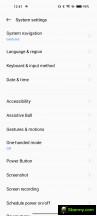
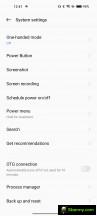
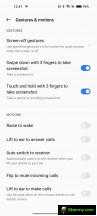

Screen off gestures and motion gestures
Realme has also kept the icon drop gesture. Swiping along the left or right edge of the screen causes icons to pile up in the bottom half of the screen so they can be easily reached with your thumb. The gesture is also quite reliable. By default, the swipe down gesture on the Home screen opens the so-called global search, but you can always set the notification shade.
There’s also a quick launch option: just tap the fingerprint scanner (if your device has an optical reader, that is) and hold until default app icons appear. Dragging your finger over one of them launches the app in question.
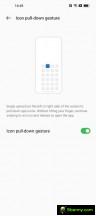

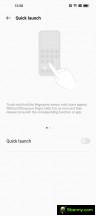

Gesture Dropdown Icon • Dropdown Icon • Quick Launch • Quick Launch
Inside the Realme lab section, you’ll find dual-mode audio, sleep capsule, and heart rate measurement (for phones with an under-display fingerprint reader). Dual-mode audio allows you to connect both wired and wireless headphones and listen to music through both. Sleep Capsule is a night mode, which restricts specific apps. And heart rate measurement uses optical fingerprint scanner to measure heart rate. It might not be that accurate, though.
Previously, this Lab page also contained DC dimming, but now this type of display behavior (DC or PWM) is handled automatically by the software.




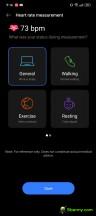
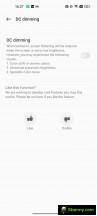
Realme Labs • Sleep Capsule • Heart Rate • Realme UI 3 DC attenuation is gone
Media apps like Photos, Music and Videos are powered by Realme. There’s also a revamped File Manager and even a Phone Manager app. This completes the list of non-Google apps.




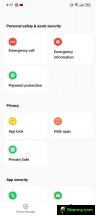
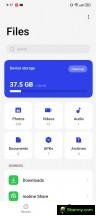
Photos • Music • Videos • Phone Manager • Phone Manager • File Manager
As part of Android 13 comes an improved copy and paste functionality, which lets you edit text before pasting it elsewhere. You see, when you copy something, a little clipboard window appears at the bottom – tap here, edit the text, and there’s no need to copy it again, then go and paste it. Clean!




Android 13 copy and paste
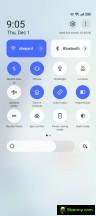
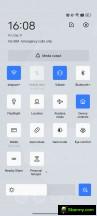
And speaking of Android 13, you can find its built-in QR scanner as part of the Quick Toggles area. It leads to Google Lens, in case you were wondering.




QR scanners
Realme UI 4.0 also supports this cool auto-pixelate feature, which can blur/pixelate sensitive information when you take a screenshot in WhatsApp or Messenger and intend to share it with others. Unfortunately, it automatically blurs only the name and images, but it doesn’t detect, for example, mobile phone numbers.


Auto pixel effect
We liked the Realme 4.0 UI. The interface is uncluttered and easy to use, and looks great when drawing at 90fps or 120fps. However, it retains many powerful tools if you choose to dig deeper and use them.
Final thoughts
We’re fans of the new Android 13-based Realme UI 4. It feels a bit faster and more polished, and some of the rearranged settings now make more sense.
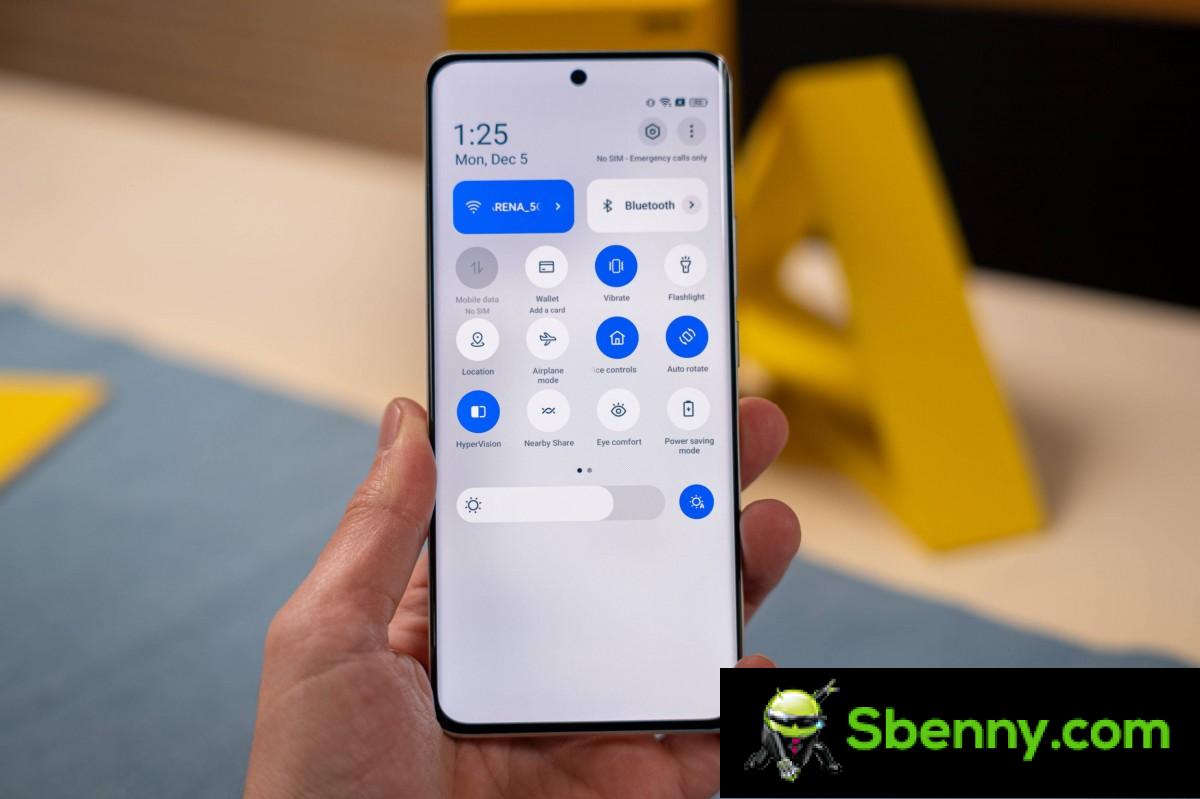
The expanded customization options are very welcome, the new widgets and folders are nice too, and there’s a lot more features to discover if you dig into Settings.
There are things that could have been done better, like widget stacks, a smarter Phone Manager, and DeX or ReadyFor-like connectivity to a bigger screen. Realme doesn’t even set a specific update policy, so you never know how many updates you’ll get with your new Realme phone.
The UI of Realme, ColorOS and OxygenOS have been unified under the ColoroOS launcher, so if you find this UI of Realme familiar, it’s because it’s a version of ColorOS 13, rather identical, let’s say. It’s also similar to the latest OxygenOS 13, for better or for worse. Let’s hope this unification eventually works out as promised, and we start reaping the rewards sooner rather than later.


Start a new Thread