
Samsung phones support screen mirroring and casting to other devices, just like all Android phones, but with limited support. You can only cast your phone screen to smart TVs via Miracast using the Smart View feature and it has always been like this. For example, Samsung and LG TVs support Miracast. However, devices like Chromecast or other Android TVs won’t be able to display your Samsung screen.
All of that seems to change. Android police discovered a very convoluted way to enable screen casting to all devices. They have confirmed that it works on One UI 5.1 devices, but it may be available for older ones as well.
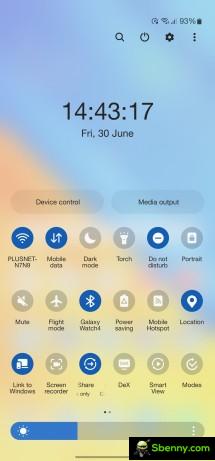


Access to Google Cast through the Smart View menu
To do this, open Smart View, tap the three-dot icon in the upper right corner, tap Settings, and enter the About Smart View menu. Tap 10 times on Smart View and when asked for a password, enter #00rtsp00. This will open a developer options menu where you need to enable Google Cast.
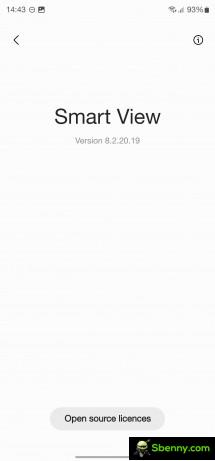
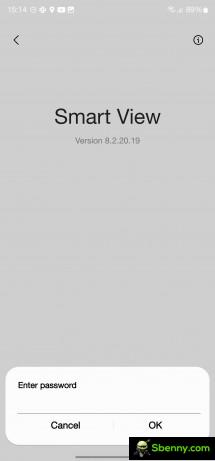

The hidden developer options menu
Once you return to the Smart View menu, you will see non-MIracast and Chromecast TVs available for screen mirroring.
The same steps are required to enable the Launch SecondScreen feature which extends the desktop environment of your Windows 10 or 11 PC. Windows key + K is the quick shortcut to connect to your Samsung phone.
It’s nice to finally have support for this, but hiding the feature in secret menus like that is a disservice to all users. Perhaps Samsung is still testing it before providing official support in the next versions of One UI.

Start a new Thread